GoHighLevel MCP Server: AI Agent CRM Setup (2026)
9 min read · Updated May 2026
What is the GoHighLevel MCP Server?
The GoHighLevel MCP (Model Context Protocol) Server is a secure, standardised protocol that lets external AI agents, like Claude, GPT, or custom agents. Read and write data directly in your GoHighLevel account. Instead of building custom API integrations, you connect once via a Private Integration Token and your AI agent immediately gets access to contacts, calendars, conversations, opportunities, payments, and more through natural language commands.
MCP is one of those features that sounds technical but fundamentally changes how you work with GoHighLevel. Instead of clicking through menus to find a contact, check a calendar, or update a deal, you tell an AI agent what you want in plain language and it handles the CRM work directly.
"Find all leads from this week who haven't been contacted and add them to the follow-up pipeline." That's not a hypothetical. It's a real command you can give Claude or GPT once they're connected to your GoHighLevel account through MCP.
I've been using this with Claude Desktop and n8n, and the productivity gain is genuine. This guide covers what MCP is, how to set it up, what tools are available, and how to use it without accidentally giving an AI agent the keys to your entire business.
EXTENDED FREE TRIAL
Start with 30 days free, not 14.
Use our partner link to get double the standard 14-day trial.
Start Your Free 30-Day Trial →What MCP Actually Is
MCP stands for Model Context Protocol: an open standard that lets AI agents interact with external tools and data sources. Think of it like USB for AI: a universal connector that lets different AI systems plug into your CRM without custom adapters.
GoHighLevel's MCP Server is the official bridge between your GHL account and any AI agent that supports HTTP-based MCP. Once connected, the AI agent can query your contacts, create opportunities, check calendar availability, send messages, and trigger workflows. All through natural language instructions that get translated into secure API calls behind the scenes.
The key difference from traditional API integrations: you don't need to write code, manage SDKs, or build custom connectors. Configure the MCP connection once, and the AI agent handles the rest.
Setting Up the MCP Server
Setup takes 10-15 minutes:
Step 1: Create a Private Integration Token (PIT). In GoHighLevel, go to Settings, then Private Integrations. Click "Create New Integration." Give it a descriptive name (like "Claude Desktop MCP" or "n8n AI Agent").
Step 2: Select scopes. Choose which permissions the AI agent will have. Only enable what you actually need. Contacts read/write, calendar read, conversations read, opportunities write, etc. You can always add more scopes later. Start minimal.
Step 3: Copy your credentials. You'll need the generated token and your Location ID (found in Settings, then Company, then Locations).
Step 4: Configure your AI client. In your AI tool (Claude Desktop, Cursor, Windsurf, OpenAI Playground, or n8n), set the MCP endpoint to https://services.leadconnectorhq.com/mcp/ and authenticate with your PIT.
Step 5: Test. Ask the AI agent something simple: "List the 5 most recent contacts." If it returns real data from your account, you're connected.
Available Tools (What the AI Agent Can Do)
The official MCP server currently includes roughly 21 tools covering core CRM operations. These are the most commonly used:
Contacts: Create, find, update, and search contacts. Look up by email, phone, or custom fields. Add tags, update properties, manage contact relationships.
Calendar: Check availability, create appointments, update bookings. The agent can find open slots and book meetings on your behalf.
Conversations: Read conversation history across channels. Access SMS, email, and chat threads tied to specific contacts.
Opportunities: Create and manage pipeline opportunities. Update deal stages, set values, assign owners.
Payments: Query transaction history, look up invoices. Useful for AI-powered financial reporting.
Tasks: Create, assign, and manage tasks tied to contacts or opportunities.
GoHighLevel's roadmap includes expanding to 250+ tools as part of a unified orchestrator layer. The current 21 cover the highest-frequency operations, with community-developed MCP servers filling gaps for more advanced use cases.
Practical Use Cases
The Morning Briefing
Connect Claude Desktop to your GHL account. Each morning, ask: "Summarise all new contacts from yesterday, any appointments scheduled for today, and any stale deals in the pipeline that haven't been updated in 7 days." You get a concise briefing without opening a single dashboard.
Lead Research and Enrichment
When a new lead comes in, ask your AI agent: "Look up this contact's information, search the web for their company, and update their contact record with the company name, size, and industry." The agent uses MCP to read the contact, web search to research them, and MCP again to update the record.
Pipeline Management
"Find all opportunities in the 'Proposal Sent' stage that are older than 14 days. For each one, create a follow-up task assigned to the deal owner with the subject 'Follow up on stale proposal.'" The agent queries your pipeline, identifies stale deals, and creates actionable tasks. All in one command.
Automated Reporting
Connect MCP to n8n and set up a weekly workflow: the AI agent pulls pipeline data from GHL, analyses it, generates a summary, and sends it to Slack or email. No manual report building required.
Start your free 30-day trial through our partner link →
n8n Integration
The MCP Server integrates directly with n8n (version 1.104+) for building automated workflows:
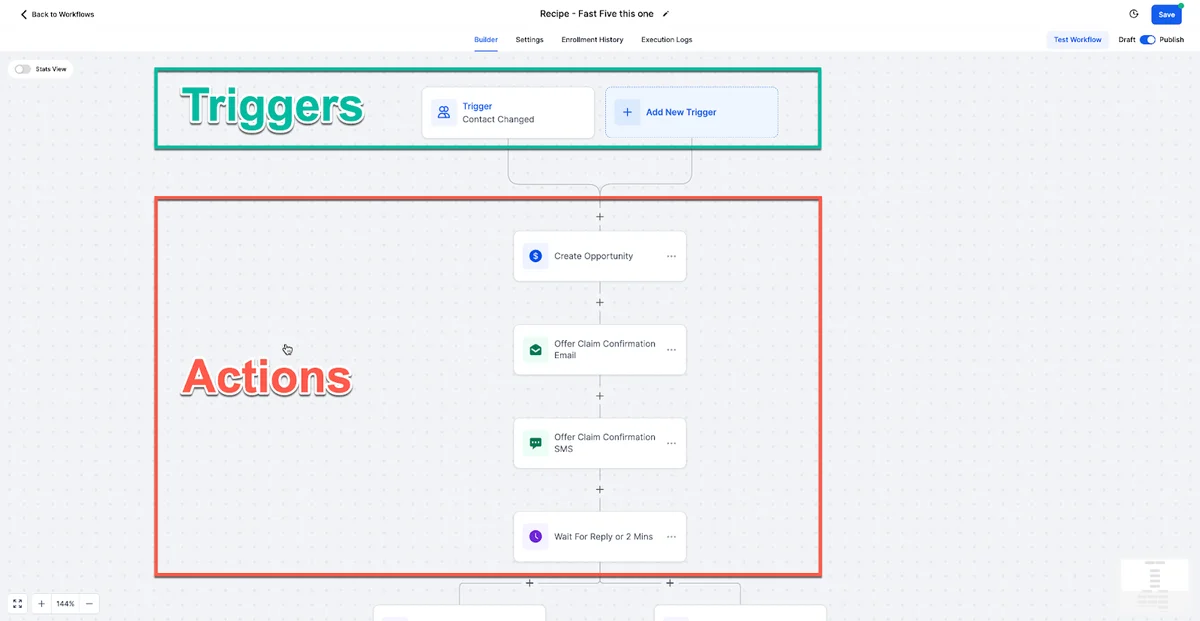
In your n8n workflow, add the MCP Client node. Set the MCP URL to https://services.leadconnectorhq.com/mcp/ and select "HTTP Streamable" as the transport protocol. Authenticate with your PIT.
You can hardcode the Location ID in the system prompt or provide it dynamically during the conversation. Once configured, select any of the available GHL tools for your workflow.
This is powerful for agencies managing multiple sub-accounts. Build one n8n workflow template, parameterise the Location ID, and deploy it across all clients.
Security: Getting This Right
When you connect an AI agent to your CRM with read and write access, security matters. A misconfigured agent with broad permissions could modify records you didn't intend it to touch.
Use minimum scopes. Only enable the permissions your use case actually needs. Read-only access for reporting. Read/write for contact management. Don't enable everything "just in case."
Rotate tokens every 90 days. Treat PITs like passwords. Set a reminder to regenerate them on a regular cycle.
Set usage limits and expiration dates. GoHighLevel allows you to configure per-token limits on request volume and automatic expiration dates. Use them.
Test in a staging sub-account first. Don't connect an AI agent to your production account on day one. Use a test sub-account with sample data until you're confident the agent behaves as expected.
Monitor execution logs. Review what the AI agent is doing, especially in the first few weeks. Look for unexpected actions, incorrect data modifications, or excessive API calls.
Official Server vs Community Servers
GoHighLevel's official MCP server has approximately 21 tools covering core operations. For many agencies, this is enough. But if you need deeper access. Invoices, payments, media library, social planner, store management, Agent Studio. Community-developed servers fill that gap.
Notable community servers on GitHub include implementations with 269+ tools and even 520+ tools covering the full GHL API surface. These are powerful but carry trade-offs: they're not officially supported, you self-host them, and you accept responsibility for maintenance and security.
My recommendation: start with the official server. It's maintained by GoHighLevel, authenticated through the standard PIT flow, and will expand to 250+ tools over time. Only move to community servers if you have a specific gap that the official server can't cover today.
Compatible Clients
Any AI system supporting HTTP-based MCP can connect. Confirmed compatible clients include:
- Claude Desktop and Claude Code (Anthropic)
- Cursor (AI code editor)
- Windsurf (AI code editor)
- OpenAI Playground (OpenAI)
- n8n (workflow automation, v1.104+)
- Custom AI applications (anything that can make HTTP requests)
An npx package for clients that don't support HTTP Streamable natively (including some Claude Desktop configurations) is on GoHighLevel's roadmap, along with OAuth support for more advanced authorisation flows.
EXTENDED FREE TRIAL
Start with 30 days free, not 14.
Use our partner link to get double the standard 14-day trial.
Start Your Free 30-Day Trial →For building visual AI agents without code, see our Agent Studio tutorial. For AI Employee pricing context, see the AI Employee guide.
Frequently Asked Questions
Do I need coding skills to use the GoHighLevel MCP Server?
Is the GoHighLevel MCP Server free?
How many tools does the GoHighLevel MCP Server support?
Can I use the MCP Server with Claude Desktop?
Is it safe to give an AI agent access to my GoHighLevel CRM?
Ashley Kemp is a digital entrepreneur and perpetual traveller. Switched from ClickFunnels to GoHighLevel years ago and never looked back. Writing about what actually works.
Was this article helpful?