GoHighLevel Ask AI Scheduled Tasks Guide (2026)
11 min read · Updated May 2026
What are GoHighLevel Ask AI scheduled tasks?
Scheduled tasks in GoHighLevel's Ask AI let you set up recurring AI prompts that run automatically on a schedule you define. Daily, weekly, or at custom intervals. Instead of manually typing the same prompts repeatedly, you configure the task once and Ask AI executes it on autopilot. This feature launched in May 2026 and is available to all Ask AI users.
This is one of those features where the moment I saw it, I thought: finally. If you've been using Ask AI in GoHighLevel at all, you've probably found yourself typing the same prompts over and over. "Generate this week's social media posts." "Summarise yesterday's new leads." "Draft follow-up emails for stale opportunities." Every Monday, every morning, the same routine.
Scheduled tasks fix that. You write the prompt once, set the schedule, and Ask AI runs it automatically. No workflow builder needed, no Zapier, no external tools. Just a recurring prompt that executes inside GoHighLevel on your timetable.
This launched on May 17, 2026, and as of right now, there's virtually no written coverage of it anywhere. So here's the full breakdown.
EXTENDED FREE TRIAL
Start with 30 days free, not 14.
Use our partner link to get double the standard 14-day trial.
Start Your Free 30-Day Trial →What Ask AI Scheduled Tasks Actually Do
Scheduled tasks bring automation to Ask AI without requiring you to build workflows. The concept is simple: you create a prompt, set a recurrence schedule (daily, weekly, custom), and Ask AI executes that prompt automatically at the specified time.
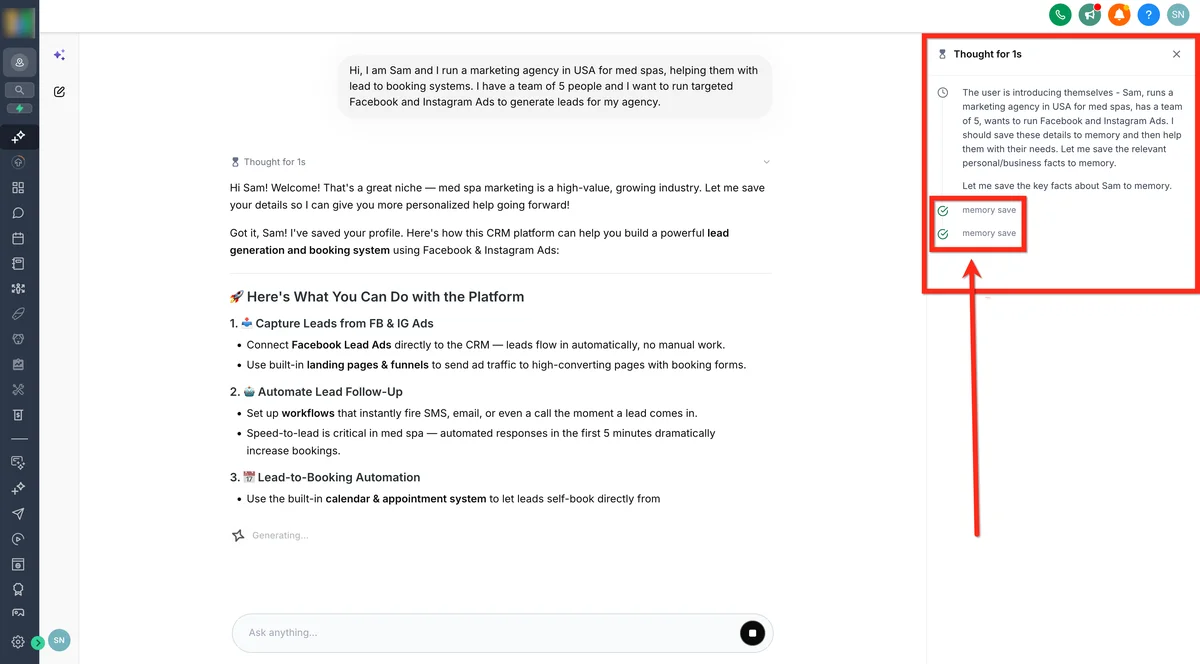
The output lands in your Ask AI workspace just as if you'd typed the prompt yourself. You can review it, act on it, or let it feed into whatever process you've built around it.
This is fundamentally different from workflow AI actions. Workflows are triggered by events: a form submission, a pipeline stage change, a tag being applied. Scheduled tasks are triggered by time. They run whether or not anything happened. That distinction matters because a lot of the repetitive work in running an agency or business isn't reactive. It's routine.
How to Set Up a Scheduled Task
Setting up scheduled tasks in Ask AI is straightforward:
Step 1: Open Ask AI from the left navigation panel. You can access it at both the Agency level and Sub-account level.
Step 2: Start a new chat or open an existing conversation where you want to create the scheduled task.
Step 3: Write your prompt as you normally would: the exact instruction you want Ask AI to execute on repeat.
Step 4: Instead of sending it immediately, look for the scheduling option. Set the recurrence pattern: how often (daily, weekly, monthly), what time, and when to start.
Step 5: Confirm and save. The task will now execute automatically at your defined intervals.
You can manage, edit, pause, or delete scheduled tasks from within Ask AI. Each execution shows up in your conversation history so you can review what the AI produced.
Practical Use Cases That Actually Save Time
The obvious use cases are content generation on a schedule, but the real value comes from recurring operational tasks that eat up admin time every single day.
Weekly Content Batching
Set a Monday morning prompt: "Generate 5 social media posts for this week based on our brand voice. Topics: [your niche]. Include a mix of educational, promotional, and engagement posts. Format each with a caption and suggested image description."
Ask AI generates the batch every Monday. You review, tweak, and schedule them in GoHighLevel's social planner. What used to take 45 minutes now takes 10.
Daily Lead Summary
Set a daily prompt for 8 AM: "Summarise all new contacts added in the last 24 hours. Include their source, any tags applied, and which pipeline stage they're in. Flag any high-value leads that need immediate follow-up."
This only works if Ask AI has access to query your CRM data (which it does at the agency level through its built-in platform awareness). You start every morning with a brief instead of digging through contact lists.
Weekly Review Request Drafting
"Draft personalised review request messages for all clients who completed appointments this week. Use our brand voice. Make each one reference the specific service they received."
Pair this with Reviews AI to semi-automate your entire reputation management pipeline.
Monthly Reporting Prompts
"Create a summary of this month's key metrics: new contacts, appointments booked, pipeline value changes, and email campaign performance. Present it as a client-ready executive summary in bullet-point format."
Run this on the first of every month. The output gives you a starting point for client reporting that would otherwise take an hour to compile manually.
Recurring Blog or Email Drafts
"Write a 500-word blog post outline based on trending topics in [industry]. Include a headline, 5 key points to cover, and a suggested CTA that links to our booking page."
Schedule it weekly and you've got a content pipeline that never runs dry. The outlines aren't publish-ready, but they're solid starting points that cut your writing time in half.
What You Can Attach to Scheduled Tasks
One of the recent Ask AI updates. Also from May 2026. Added file attachment support. You can now upload images, PDFs, code files, HTML, and other documents directly into Ask AI prompts.
When combined with scheduled tasks, this opens up some interesting possibilities. You could attach a brand guidelines PDF and have a recurring prompt that generates content referencing those guidelines every week. Or attach a price sheet and schedule a prompt that drafts custom proposals based on your current pricing.
The attachment persists with the scheduled task, so the AI has the same context every time it runs.
Ask AI Scheduled Tasks vs Workflow Automation
These aren't competing features. They solve different problems.
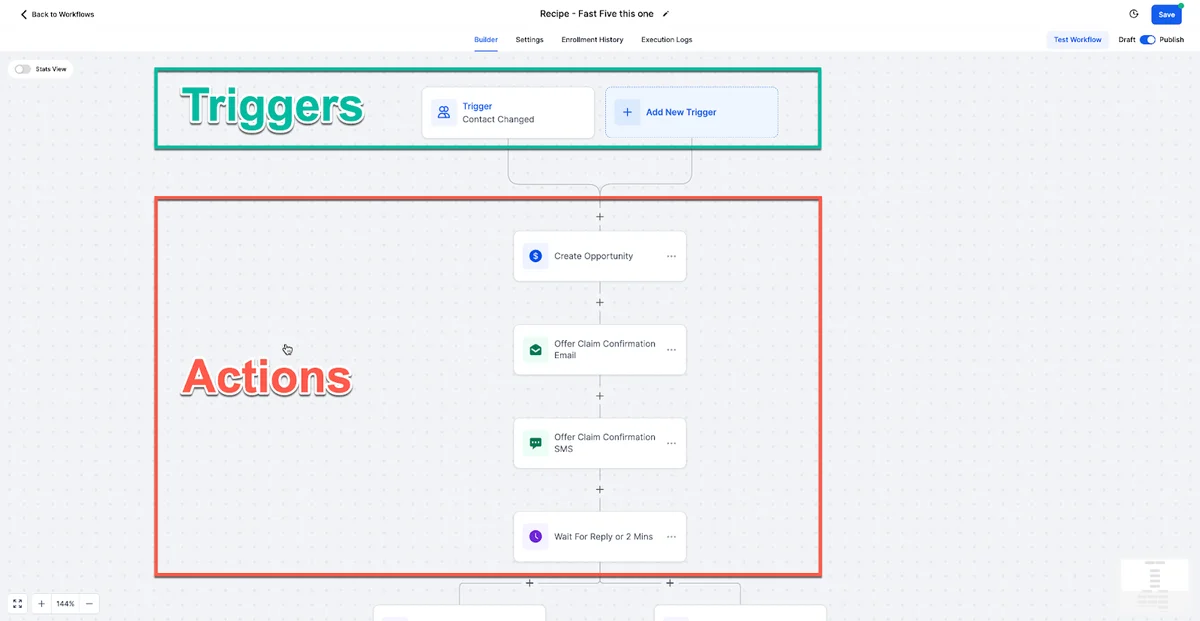
Use scheduled tasks when: the trigger is time-based and the output is content, summaries, or drafts you'll review before acting on. Scheduled tasks are for recurring admin and content work that doesn't depend on a specific event happening.
Use workflows when: the trigger is an event (form submitted, tag added, appointment booked, pipeline stage changed) and the action needs to happen automatically without human review. Workflows are for reactive automation.
Use both when: you want a scheduled task to generate content that a workflow then distributes. For example, a scheduled task generates this week's email draft every Monday, and a workflow sends the approved email every Wednesday.
The workflow builder is powerful but complex. Scheduled tasks are for the 80% of recurring work that doesn't need conditional logic, branching, or event triggers. It just needs to happen on a regular cadence.
Start your free 30-day trial through our partner link →
Who Can Access Scheduled Tasks
Ask AI, and by extension, scheduled tasks. Is available to:
- Agency admins and agency users: Free access, no additional cost
- Sub-account admins and users: Requires the AI Employee unlimited plan ($97/month per sub-account)
If you're running GoHighLevel as an agency owner, you have immediate access. If you want your clients or their team members to use scheduled tasks in their own sub-accounts, they'll need the AI Employee plan enabled.
GoHighLevel is expanding Ask AI sub-account access through end of May 2026, so the availability may broaden further.
Voice Mode and Mobile Access
Two related updates worth mentioning alongside scheduled tasks:
Voice input now works in Ask AI. Instead of typing your prompts, you can speak them. The AI responds conversationally. Voice mode talks back. This is particularly useful for creating scheduled tasks when you're on the go. Speak your prompt, set the schedule, done.
Mobile Ask AI is now live on iOS and Android. You can create, review, and manage scheduled tasks from your phone. The scheduled task outputs show up in your Ask AI history just like they do on desktop.
These three features together (scheduled tasks, voice input, and mobile access) make Ask AI a genuinely useful daily tool rather than something you open occasionally for one-off content generation.
Tips for Writing Better Scheduled Prompts
The quality of your scheduled task output depends entirely on the prompt. Since these run unattended, the prompt needs to be more specific than what you'd type in a live conversation where you can course-correct.
Be explicit about format. Don't just say "generate social posts." Say "generate 5 social media posts, each with a headline under 10 words, a caption of 2-3 sentences, and one relevant hashtag set of 5 tags."
Reference your brand voice. If you've configured Brand Voice in GoHighLevel (Marketing, then Branded Content, then Brand Voice), mention it in the prompt. "Use our configured brand voice" tells Ask AI to pull your tone, terminology, and style preferences.
Include constraints. "Don't mention competitors by name." "Keep pricing references to our published rates only." "Avoid claims we can't verify." Constraints prevent the AI from generating content you'd have to heavily edit.
Specify the output destination. "Format this as a ready-to-paste email body" versus "format this as bullet points for internal review" changes the output significantly.
Test the prompt manually first. Before scheduling it to run every Monday, run it once manually and review the output. Adjust until the quality is where you want it, then schedule.
My Setup: How I'm Using Scheduled Tasks
Here's what I have running right now:
Daily (8 AM): A prompt that checks for any new GoHighLevel feature updates or changelog entries and drafts a short summary I can review for potential blog content. This keeps me on top of platform changes without manually checking release notes.
Weekly (Monday 9 AM): Content calendar prompt that generates 5 social post concepts and 2 blog topic ideas based on trending GoHighLevel keywords and common user questions.
Weekly (Friday 4 PM): A week-in-review prompt that summarises what I worked on, what got published, and what's pending. Basically an automated status report.
None of these outputs go live without me reviewing them. But they save me roughly 2-3 hours per week of repetitive thinking and drafting work. That adds up.
EXTENDED FREE TRIAL
Start with 30 days free, not 14.
Use our partner link to get double the standard 14-day trial.
Start Your Free 30-Day Trial →Frequently Asked Questions
Do GoHighLevel Ask AI scheduled tasks cost extra?
Can I schedule tasks to run daily in Ask AI?
What is the difference between Ask AI scheduled tasks and GoHighLevel workflows?
Can my clients use Ask AI scheduled tasks in their sub-accounts?
Can I attach files to scheduled tasks in Ask AI?
Ashley Kemp is a digital entrepreneur and perpetual traveller. Switched from ClickFunnels to GoHighLevel years ago and never looked back. Writing about what actually works.
Was this article helpful?