GoHighLevel Calendar & Booking (2026)
18 min read · Updated April 2026
Does GoHighLevel have a calendar and booking system?
Yes. GoHighLevel includes a full-featured calendar and booking system in every plan starting at $97/month. It supports 5 calendar types - Standard, Round Robin, Class/Event, Collective, and Service - plus GoHighLevel automations reminders, Stripe payments, Google/Outlook sync, Zoom integration, and embeddable booking widgets. No Calendly subscription needed.
If you're paying $20 per seat per month for Calendly on top of your GoHighLevel CRM, you're paying twice for the same problem. GoHighLevel's built-in booking system does everything Calendly does - and layers in CRM data, multi-step automations, and payment collection that Calendly simply can't match.
This guide walks through every calendar type, a step-by-step setup, and a head-to-head comparison so you can make the switch with confidence.
TL;DR
- GoHighLevel includes a complete booking system - 5 calendar types, automated reminders, payments, and external calendar sync - at no extra cost beyond your GHL plan.
- The average agency saves $200–$400/month by cutting Calendly across their client accounts once they switch to GHL's native scheduling.
- Setup takes under 30 minutes - create a calendar, set availability, add automations, embed the widget, and you're live.
EXTENDED FREE TRIAL
Start with 30 days free, not 14.
Use our partner link to get double the standard 14-day trial.
Start Your Free 30-Day Trial →What Is the GoHighLevel Calendar System?
GoHighLevel's Calendar module is a native scheduling tool built directly into your GHL sub-account. It lives under Calendars in the left-hand navigation and handles the full booking lifecycle: availability management, self-service booking pages, confirmation/reminder automation, payment collection, and post-appointment follow-up - all without leaving the platGoHighLevel forms and surveys.

Every GHL plan - Starter ($97/mo), Unlimited ($297/mo), and SaaS Pro ($497/mo) - includes the calendar system with no seat-based pricing and no per-calendar fees. Agencies can deploy separate calendars inside each client sub-account at no additional cost.
Core capabilities included:
- 5 distinct calendar types for different scheduling scenarios
- Unlimited calendars per sub-account
- Custom booking form fields and intake questions
- Confirmation, reminder, and follow-up automations via Workflows
- Google Calendar and Outlook sync (bi-directional)
- Zoom and Google Meet link auto-generation
- Stripe payment collection at booking (deposit or full)
- Embeddable booking widgets for funnels, websites, and pop-ups
- White-label booking pages on your custom domain
The booking page is branded to your business (or your client's business) - no "Powered by Calendly" watermark.
GoHighLevel Calendar Types Explained
GHL gives you five calendar types, each built for a different scheduling scenario. Picking the right type before setup saves you from rebuilding later.
1. Standard Calendar (One-on-One)
The classic scheduling for healthcare providers type. One contact books one time slot with one team member. Use this for sales calls, consultations, onboarding sessions, or any scenario where a single person needs a dedicated slot.
Best for: Coaches, consultants, sales teams, service businesses with one primary booker.
Key settings: Appointment duration, buffer time before/after, minimum scheduling notice, maximum bookings per day.
2. Round Robin Calendar (Team Booking)
A single booking link that auto-assigns appointments across multiple team members based on availability and routing rules. You can weight team members differently (e.g., senior reps get 60% of bookings) or use pure availability-based distribution.
Best for: Sales teams, customer success teams, support-heavy agencies where any available rep can handle the call.
Key settings: Team member assignment, weighting rules, conflict detection, meeting owner notifications.
3. Class/Event Calendar (Group Bookings)
A single time slot that accepts multiple bookings up to a defined seat cap. Each registrant gets a confirmation but they all join the same session - live webinar-style.
Best for: Workshops, group coaching, live demos, onboarding cohorts, fitness classes, free webinar registrations.
Key settings: Maximum seats per session, waitlist behavior, session recurrence, group confirmation email.
4. Collective Calendar (Multi-Host)
A booking that requires all specified hosts to be available simultaneously. The system only shows time slots where every listed team member's calendar is open. Perfect when a prospect needs to meet your whole leadership team or when a service requires two technicians.
Best for: Partnership calls, enterprise demos, medical consultations requiring multiple specialists.
Key settings: Required hosts list, availability overlap logic, meeting link assignment.
5. Service Calendar (Duration + Staff)
Designed for service businesses where the booking requires a specific staff member and a defined service duration. Think salons, spas, home services, or any business with distinct services tied to staff capacity.
Best for: Contractors, med spas, cleaning companies, mechanics - any business where "what service" and "with whom" both matter.
Key settings: Service catalog with individual durations, staff assignment per service, buffer/cleanup time, resource availability.
GoHighLevel vs Calendly: Full Comparison
This is the comparison that matters for any agency or business currently paying for Calendly separately.
| Feature | GoHighLevel Calendar | Calendly |
|---|---|---|
| Included in plan | ✅ All plans ($97/mo+) | ❌ Add-on ($10–$20/seat/mo) |
| One-on-one bookings | ✅ Standard Calendar | ✅ Yes |
| Round Robin / team routing | ✅ Built-in | ✅ Teams plan only |
| Group / class bookings | ✅ Class Calendar | ⚠️ Limited (event type) |
| Multi-host (collective) | ✅ Collective Calendar | ❌ No |
| Service catalog with staff | ✅ Service Calendar | ❌ No |
| Automated SMS reminders | ✅ Via Workflows | ⚠️ Email only on base plans |
| Post-appointment follow-up | ✅ Full workflow automation | ⚠️ Basic email only |
| No-show automation | ✅ Trigger on no-show status | ❌ No |
| Built-in CRM | ✅ Full CRM included | ❌ Requires integration |
| Pipeline automation on book | ✅ Move to stage, assign rep | ❌ No |
| Stripe payments at booking | ✅ Deposit or full payment | ✅ Yes (paid plans) |
| Google Calendar sync | ✅ Bi-directional | ✅ Yes |
| Outlook sync | ✅ Yes | ✅ Yes |
| Zoom auto-link generation | ✅ Yes | ✅ Yes |
| Google Meet auto-link | ✅ Yes | ✅ Yes |
| White-label booking page | ✅ Custom domain, no branding | ❌ Calendly branding |
| Embed on website/funnel | ✅ Widget + popup | ✅ Embed only |
| Agency multi-client mgmt | ✅ Sub-account per client | ⚠️ Separate accounts |
| Price (5 users) | ~$97/mo total | ~$100/mo (5 × $20) |
| Price (20 users) | ~$297/mo total | ~$400/mo (20 × $20) |
The financial case alone is compelling. A 20-person team on Calendly Teams costs $400/month - just for scheduling. GoHighLevel's Unlimited plan at $297/month includes scheduling plus a full CRM, email marketing, GoHighLevel phone system marketing, funnels, websites, automation, and more.
For agencies managing 10+ clients, each paying for their own Calendly subscription, consolidating into GHL sub-accounts can save thousands per month across the portfolio.
How to Set Up GoHighLevel Calendar (Step-by-Step)
Here's the complete setup process from a blank sub-account to a live, automated booking page.
Step 1: Create a Calendar
- In your GHL sub-account, navigate to Calendars in the left sidebar.
- Click + New Calendar in the top-right corner.
- Select your calendar type (Standard, Round Robin, Class, Collective, or Service).
- Enter a Calendar Name (visible to bookers) and an internal Description.
- Assign the Calendar Owner - the team member whose availability this calendar reflects.
- Click Create Calendar to proceed to settings.
Step 2: Set Availability and Time Zones
- Open the Availability tab inside your new calendar.
- Toggle on the days you accept bookings (e.g., Mon–Fri).
- Set your daily Start Time and End Time for each active day.
- Set the Appointment Duration (e.g., 30 min, 60 min).
- Add Buffer Time before and/or after each slot to prevent back-to-back bookings.
- Set Minimum Scheduling Notice (e.g., 4 hours - prevents last-minute bookings you can't prepare for).
- Set Maximum Bookings Per Day if you want to cap daily appointments.
- Confirm the Time Zone - GHL will display the booking page in the visitor's local time zone automatically.
Step 3: Configure Booking Form Fields
- Click the Forms tab in your calendar settings.
- The default form includes First Name, Last Name, Email, and Phone - all of which auto-populate the contact record in GHL's CRM.
- Click + Add Field to add custom questions: dropdown menus, text fields, checkboxes, or file uploads.
- Mark intake fields as Required or optional.
- Customize the Confirmation Message shown after booking - include next steps, a resource link, or a video.
- Toggle on Allow Reschedule and Allow Cancellation if you want self-service links in the confirmation email.
Step 4: Connect Google or Outlook Calendar Sync
- Go to Settings → Integrations → Calendar Sync.
- Click Connect Google Calendar or Connect Microsoft Outlook.
- Authenticate with your Google/Microsoft account.
- Choose which GHL calendar maps to which external calendar.
- Enable Check for Conflicts - GHL will block booking slots that already have events in your external calendar.
- Enable Write Events to External Calendar so confirmed appointments appear in Google/Outlook automatically.
For Zoom: Go to Settings → Integrations → Zoom, authenticate, then return to your calendar settings and set Conference Type to Zoom. A unique Zoom link will be auto-generated for every confirmed booking.
Step 5: Set Up Confirmation and Reminder Automations
This is where GHL leaves Calendly far behind.
- Navigate to Automation → Workflows → + New Workflow.
- Set the Trigger to Appointment Status → Status = Confirmed.
- Add your first action: Send Email - confirmation with appointment details, location/link, and prep instructions.
- Add a second action: Send SMS - short confirmation text asking the contact to reply YES to confirm.
- Add a Wait step: "Wait until 1 day before appointment."
- Add Send Email (24-hour reminder) and Send SMS (24-hour reminder with meeting link).
- Add another Wait step: "Wait until 2 hours before appointment."
- Add Send SMS (2-hour reminder with direct link).
- Add a separate Trigger for Appointment Status = No Show: send an immediate SMS offering to reschedule + move the contact to a "No Show" pipeline stage for follow-up.
Step 6: Embed on a Funnel or Website Page
- Go to Calendars → select your calendar → click the Share icon.
- Copy the Booking Link to share directly via email or SMS.
- For website embedding: click Embed Code → copy the
<iframe>snippet and paste it into any HTML section of your website or GHL funnel page. - For a pop-up widget: use the inline widget code in GHL's funnel/website page builder - drag in a Calendar element and map it to your calendar.
- For GHL funnels: add a Calendar element anywhere in the page builder and select your calendar from the dropdown - no code required.
Step 7: Test a Booking End-to-End
- Open the booking page in an incognito window.
- Select a time slot and complete the intake form with a test email address.
- Confirm you receive the GHL confirmation email and SMS.
- Check the Calendar view in GHL - the appointment should appear.
- Check your Google/Outlook calendar - the event should sync within 60 seconds.
- Verify the Zoom link (if configured) is unique and functional.
- In the GHL CRM, locate the test contact and confirm the appointment is listed under their record.
Total setup time for steps 1–7: approximately 25–30 minutes for a first-time setup.
Automated Reminders and Follow-Ups
Booking confirmation is just the beginning. GHL's Workflow engine lets you automate every moment in the appointment lifecycle using dedicated appointment triggers.
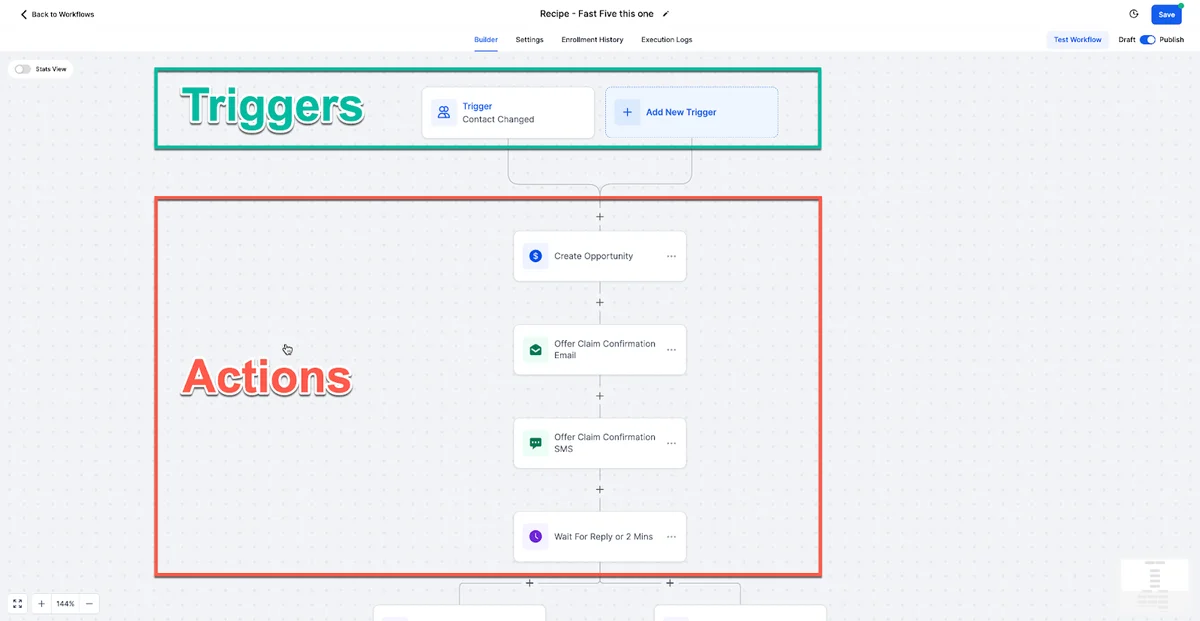
Available Appointment Trigger Statuses:
| Status | When It Fires |
|---|---|
| Appointment Booked | The moment a booking form is submitted |
| Appointment Confirmed | When the contact confirms (e.g., replies YES) |
| Appointment Reminder | Time-based, relative to appointment time |
| Appointment No Show | When status is manually or automatically set to No Show |
| Appointment Cancelled | When contact cancels via self-service link |
| Appointment Completed | After the appointment time passes (auto or manual) |
High-value automations to build:
- On Booked: Add contact to pipeline → notify assigned rep via Slack or internal SMS → send intake form if needed.
- On Confirmed: Log confirmation in CRM → send prep materials or pre-read resources.
- 24 hours before: Email + SMS reminder with link, start time, and "Reply CANCEL to reschedule."
- 2 hours before: Final SMS reminder.
- On No Show: Immediate SMS offering rebook link → move to "No Show" stage → task assigned rep to call within 24 hours.
- On Completed: Trigger review request workflow → send post-session resources → propose next booking.
Every workflow is visual, drag-and-drop, and reusable across clients via GHL Snapshots.
Taking Payments at Booking
GoHighLevel lets you collect payment - deposit or full amount - at the time of booking, eliminating the classic "paid but didn't show" problem on free-booking flows.
Setup (6 steps):
- Go to Settings → Payments → Integrations and connect your Stripe account.
- Open your calendar settings and navigate to the Payments tab.
- Toggle Collect Payment to ON.
- Choose Payment Type: Full Amount or Deposit Amount.
- Enter the price and select the currency.
- Save - the booking form will now include a Stripe payment step before confirmation.
When a contact books and pays, GHL:
- Creates a contact record and marks the appointment as paid
- Sends a payment receipt via email automatically
- Records the transaction in GHL's Payments dashboard
- Can trigger a workflow on "Payment Received" for any additional automation
No-shows drop dramatically when people have skin in the game. Even a $25–$50 deposit creates meaningful commitment.
Google Calendar Sync and Zoom Integration
Google Calendar Sync runs bi-directionally:
- GHL reads your Google Calendar to block unavailable slots in real time
- Confirmed GHL bookings appear automatically as Google Calendar events
- Cancellations and reschedules in GHL sync back to Google Calendar
Outlook/Microsoft 365 works identically for teams on the Microsoft ecosystem.
Zoom Integration:
- Connect once under Settings → Integrations → Zoom
- Each confirmed booking generates a unique Zoom meeting link automatically
- The link is included in all confirmation and reminder emails/SMS sent by GHL
- Zoom meetings appear in your Zoom account dashboard as scheduled meetings
Google Meet:
- Connect your Google account and enable Google Meet under calendar settings
- Works the same as Zoom - unique link per booking, auto-embedded in confirmations
One important note: each team member using Round Robin or Collective calendars needs to connect their own individual Google/Zoom account for conflict-checking and meeting link generation to work correctly.
Embedding Calendars in Funnels and Websites
GHL offers three ways to deploy your booking calendar externally:
1. Direct Booking Link
Every calendar generates a unique hosted booking URL (e.g., yourdomain.com/calendar/discovery-call). Share it in emails, SMS campaigns, social bios, or LinkedIn profiles. The page is fully white-labeled on your custom domain.
2. Inline Embed (iFrame) Copy the embed code from the calendar's Share settings and paste it into any webpage's HTML. Works on WordPress, Webflow, Squarespace, or any site that accepts custom HTML.
3. GHL Funnel/Website Page Builder (No Code) Inside GHL's native funnel and website builder, drag the Calendar element onto any page and map it to your calendar. Style it to match your page without touching code. This is the fastest path for GHL-native pages.
Pop-up Trigger: Use GHL's pop-up trigger functionality to show the calendar after a set delay, on exit intent, or when a contact clicks a CTA button. This keeps your page layout clean while converting visitors who are ready to book.
Best practices:
- Place the calendar below a short social proof section (2–3 testimonials or logos) on your booking page - it improves show rates.
- For funnels, set the calendar page as the final step after a lead capture form so the contact is already in your CRM before they book.
- Use UTM parameters in your booking links to track which marketing channel drove bookings.
FREE TRIAL
Get 30 Days Free With Our Partner Link
- ✓Full access for 30 days
- ✓No charge during the trial
- ✓Cancel any time
Join 2.2 million businesses already running on GoHighLevel
GoHighLevel Calendar for Agencies
Agencies running GHL on the Unlimited ($297/mo) or SaaS Pro ($497/mo) plans can manage unlimited client calendars across unlimited sub-accounts - each fully isolated with its own branding, team members, automations, and booking pages.
Agency workflows that save significant time:
Snapshot Deployment Build a master calendar setup once - calendar type, automations, form fields, reminder sequences - then save it as a GHL Snapshot. Deploy that snapshot to any new client sub-account in minutes. A 4-week calendar + reminder build becomes a 5-minute deployment.
Sub-Account Isolation Each client's calendar, contacts, automations, and payment data is completely isolated inside their sub-account. There's no cross-contamination of data between clients, and each client sees only their own branded booking page.
White-Label Booking Pages Every client's booking page runs on their custom domain with their logo and branding - not GHL's. For SaaS Mode agencies, the entire GHL platform is rebranded as your product.
Reporting Across Clients GHL's Agency Dashboard shows appointment volume, booking rates, and revenue across all sub-accounts in one view, useful for monthly reporting or identifying underperforming calendars.
Billing Clients for Calendly Replacement Many agencies charge clients $50–$100/month as part of a "tech stack management" retainer that includes their GHL sub-account. Folding in Calendly replacement - saving the client $20–$40/month - makes the pitch easy.
Limitations to Know
GHL's calendar system is comprehensive but not without gaps. Be aware of these before fully committing:
No native iCal feed export. GHL syncs to Google/Outlook via direct integration but doesn't generate a generic .ics subscription feed compatible with all calendar apps. Contacts outside Google/Outlook ecosystems can't subscribe to your calendar natively.
Zoom link requires individual accounts. For Round Robin calendars, each team member must connect their own Zoom account for unique links. A single shared Zoom account doesn't generate per-rep meeting links.
No real-time group scheduling (Doodle-style polls). GHL doesn't have a "pick a time that works for everyone" group poll feature. For external multi-party scheduling, you'd need a workaround.
Custom UI theming is limited. The booking page layout is customizable but not as visually flexible as a fully custom-coded Calendly embed. For heavily designed booking experiences, a GHL funnel page wrapping the calendar widget gives more design control.
Google Workspace shared calendars. GHL syncs with personal Google Calendars well. Google Workspace room calendars or shared team calendars can require additional configuration and aren't fully supported in all scenarios.
Bulk reschedule tools are limited. If you need to mass-reschedule appointments (e.g., a team member is sick), you'll need to handle it manually or via the API. There's no bulk-reschedule UI.
These are edge cases for most businesses. For standard appointment booking - including complex agency and multi-team setups - GHL's system handles everything you need.
Start Your 30-Day Free Trial
GoHighLevel's calendar system is live and testable in your first 30 days - bring your real team members, connect your Google Calendar, and run actual bookings with real clients. If you're currently paying $20+/seat/month for Calendly, you'll likely cover GHL's entire monthly cost just from that one cut.
The 30-day trial gives you full access to every calendar type, all automation triggers, Stripe payments, and the complete platform - no feature gating.
Related Articles
EXTENDED FREE TRIAL
Start with 30 days free, not 14.
Use our partner link to get double the standard 14-day trial.
Start Your Free 30-Day Trial →Related Resources
- Visit the GoHighLevel official site
- Visit the Calendly scheduling statistics
Frequently Asked Questions
Does GoHighLevel have a calendar and booking system?
How do I embed the GoHighLevel calendar on my website?
How many calendars can I create in GoHighLevel?
Can I take payment when someone books through GoHighLevel?
Can GoHighLevel replace Calendly?
Does GoHighLevel sync with Google Calendar and Outlook?
Ashley Kemp is a digital entrepreneur and perpetual traveller. Switched from ClickFunnels to GoHighLevel years ago and never looked back. Writing about what actually works.
Was this article helpful?